> For the complete documentation index, see [llms.txt](https://support.suptask.com/llms.txt). Markdown versions of documentation pages are available by appending `.md` to page URLs; this page is available as [Markdown](https://support.suptask.com/working-with-tickets/ticket-submission.md).
# Quickstart: Your First Ticket
Learn the methods of creating tickets with Suptask
## Overview
Suptask supports a number of different methods to submit a ticket. Which methods are available depends on the [intake sources](/setup-and-configure/inboxes/intake-sources.md) of your Inboxes:
* **Suptask App** - always on, available everywhere in Slack without a channel
* **Slack channel sources** - channels connected to an Inbox, where tickets are submitted manually or created automatically
* **Email source** - a support mailbox forwarded to Suptask
Your organization can choose what methods to use, and what to recommend for the users.
***
## Before you begin
Make sure you have:
* Installed Suptask in your Slack workspace ([Install Suptask](/getting-started/install-suptask.md))
* An Inbox and a Form configured in order to submit tickets with Suptask ([Set up your Inbox](/getting-started/your-first-inbox-and-form.md))
{% hint style="info" %}
Looking for instructions and videos on how it works when submitting a ticket in Slack?\
[How to submit a ticket](/working-with-tickets/for-users-who-submit-tickets/how-to-create-a-ticket.md)
{% endhint %}
***
## Submit through the Suptask App
These methods work everywhere in Slack - channels, Direct Messages (DM) and group chats - without any channel configuration. Every Form in your account is available through the Suptask App.
Add the ticket 🎫 reaction emoji on an existing message
**Availability:**
Channels, Direct Messages (DM), Groups and Slack Connect channels
**Requirements:**
* In Channels & Groups, make sure that the Suptask App is invited.\
[Invite the Suptask App](/getting-started/install-suptask/invite-the-suptask-app.md)
* In Direct Messages (DM), the user who triggers the ticket creation might need to give extended permissions to Suptask.\
[How to submit a ticket](/working-with-tickets/for-users-who-submit-tickets/how-to-create-a-ticket.md#create-a-ticket-in-direct-messages-dm)
**Learn More:**
[How to submit a ticket](/working-with-tickets/for-users-who-submit-tickets/how-to-create-a-ticket.md#create-a-ticket-from-messages-using-the-ticket-reaction-emoji)
Use any of Suptask's slash commands
**Availability:**
Channels, Direct Messages (DM) and Groups
**Requirements:**
* Use any of the available slash command aliases, such as `/support, /suptask, /helpdesk, /request etc.`
**Learn More:**
[How to submit a ticket](/working-with-tickets/for-users-who-submit-tickets/how-to-create-a-ticket.md#create-a-new-ticket-with-slash-command)
Use the message shortcut on any existing message
**Availability:**
Channels, Direct Messages (DM) and Groups
**Requirements:**
* Message need to be sent before creating the ticket.
**Learn More:**
[How to submit a ticket](/working-with-tickets/for-users-who-submit-tickets/how-to-create-a-ticket.md#create-a-ticket-using-message-shortcuts)
From Suptask App Home
**Availability:**
Suptask App Home
**Requirements:**
* Accessed from the Suptask App in Slack, by clicking on the ***Create a new ticket*** action button.
**Learn More:**
[How to submit a ticket](/working-with-tickets/for-users-who-submit-tickets/how-to-create-a-ticket.md#create-a-ticket-from-suptask-app-home-in-slack)
Message the Suptask App in the Messages tab
**Availability:**
The Messages tab of the Suptask App in Slack
**Requirements:**
* Send a message describing your request directly to the Suptask App. Suptask replies and asks if a ticket should be created.
***
## Submit through a Slack channel
These methods require the channel to be connected to an Inbox as a [Slack channel source](/setup-and-configure/inboxes/intake-sources.md#slack-channel-sources), with the Suptask App invited to the channel.
Submit manually in a connected channel
**Availability:**
Channels and Slack Connect channels connected to an Inbox with the creation mode **Manual**
**Requirements:**
* Users submit with the ticket 🎫 reaction emoji, the message shortcut or the slash command. In Slack Connect channels, the ticket 🎫 reaction emoji is the supported method.
* Forms with Public privacy are only visible to members of the channel.
**Learn More:**
[Users and Agents in the same channel](/setup-and-configure/inboxes/collaboration-with-users-and-agents.md)
Automatically create tickets from any message sent in a channel
**Availability:**
Channels connected to an Inbox with the creation mode **Automatic**
**Requirements:**
* Enabled by setting the creation mode of the Slack channel source to Automatic.
* Also creates tickets from messages posted by other Slack apps and bots.
**Learn More:**
[Automatic ticket creation](/working-with-tickets/for-agents-who-respond-and-manage-tickets/how-to-automatically-create-tickets-from-new-messages.md)
Create tickets in Slack Connect channels
**Availability:**
Slack Connect channels connected to an Inbox
**Requirements:**
* Add the Slack Connect channel to a Slack channel source and invite the Suptask App.
* Users in the external workspace submit with the ticket 🎫 reaction emoji.
**Learn More:**
[Slack Connect & External Connections](/setup-and-configure/customer-support/how-to-set-up-slack-connect-with-suptask.md)
***
## Submit through Email
Use the Email-to-Slack integration to submit tickets from email
**Availability:**
Email
**Requirements:**
* Requires an email address to receive tickets with.
* Enabled by adding an Email source to the Inbox.
**Learn More:**
[Email-to-Slack Ticketing](/integrations-automations-and-workflows/email-ticketing-setup.md)
{% hint style="info" %}
By creating a ticket on an existing message, Suptask will automatically populate the ticket description field with the content of the message.
{% endhint %}
***
## Create a ticket in Slack
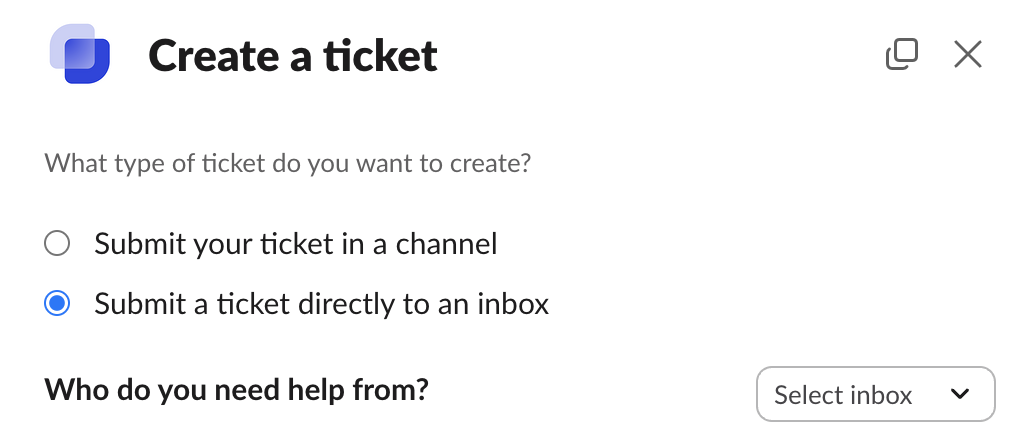
The dialogue is displayed when using the Message shortcut creation and several other methods.
Submitting a ticket with certain methods in Slack will open up the **Create a ticket** dialogue. This dialogue is a starting point to submit tickets across all your Inboxes, Forms and Channels.
* **Submit your ticket to a channel**\
This option groups the channels connected to your Inboxes where Forms with Public privacy are offered.
* **Submit a ticket directly to an Inbox**\
This option groups the Inboxes which have Forms with Private privacy.
{% hint style="info" %}
**Tips!**\
\
If none of your Inboxes have a Form with Public privacy offered on a Slack channel source, the option **Submit your ticket to a channel** will not be visible.
The same goes for the **Submit a ticket directly to an Inbox** option, it will not be visible if there are no Forms with Private privacy.
{% endhint %}
***
## Best Practices
Suptask can help you optimize the ticket creation for your users, by intelligently minimizing the amount of steps & clicks that the user need to perform to submit a ticket.
* **Automatically select an Inbox for the user**\
By using only one Inbox, Suptask will automatically select this Inbox for your users.
* **Automatically select a Form for the user**\
By using only one Form, Suptask will automatically bring up this Form for your users after selecting an Inbox, without the need to select a Form.
* **Automatically submit the ticket with a Form**\
Only set the Description field as required and set all the other fields for the Requester as optional. Suptask will then automatically create the ticket without asking the user to fill in any fields.
* **Creating tickets from existing messages**\
By creating a ticket on an existing message, Suptask will automatically populate the ticket description field with the content of the message.
* **Set the Requester from the message author**\
When creating a ticket from a message, the author of the message will by default become the requester of the new ticket. This can help you as an Agent when you create a ticket on-behalf of a user. You can customize this behavior from the [Account Settings](https://app.suptask.com/account/settings).
{% hint style="info" %}
All of these options can be combined to fully optimize & streamline the ticket submission process for your users.
{% endhint %}
***
## What happens after a ticket is submitted?
When a ticket is submitted it is routed to the Inbox via the Form it was submitted with. The Agents in the Inbox are automatically notified in the Responder channel in Slack.
The ticket can be managed in both places, with everything kept in sync:
* **In Slack** - Agents reply, assign and update the ticket from the Responder channel, and requesters follow their tickets in the Suptask App.
* **In the Suptask Web App** - Agents and requesters can track, filter and manage the same tickets in the browser at [app.suptask.com](https://app.suptask.com).
The user who submitted the ticket is notified in Slack, just like a normal message, when there is an update on the ticket.
A ticket that is submitted on behalf of a user notifies both the user who submitted the ticket and the user who is the requester. Any updates to the ticket are only shared with the requester.
[Manage tickets as an Agent](/working-with-tickets/for-agents-who-respond-and-manage-tickets/overview-and-manage-tickets-as-an-agent.md) · [Overview your tickets as a user](/working-with-tickets/for-users-who-submit-tickets/overview-your-tickets-as-a-user.md)
***
## Learn more
{% content-ref url="/pages/MkYI2uvYvJIZFHO4njTc" %}
[How to submit a ticket](/working-with-tickets/for-users-who-submit-tickets/how-to-create-a-ticket.md)
{% endcontent-ref %}
{% content-ref url="/pages/c1sYkiawgpu38DROVWC5" %}
[Intake sources](/setup-and-configure/inboxes/intake-sources.md)
{% endcontent-ref %}
{% content-ref url="/pages/ig0ls7Fi344Ma9hlMnFG" %}
[Essentials for Your daily work](/working-with-tickets/essentials-for-your-daily-work.md)
{% endcontent-ref %}