> For the complete documentation index, see [llms.txt](https://support.suptask.com/llms.txt). Markdown versions of documentation pages are available by appending `.md` to page URLs; this page is available as [Markdown](https://support.suptask.com/suptask-ai/ai-assistants.md).

# AI Assistants

Suptask AI works through **Assistants** - configurable helpers that work on your tickets. An Assistant can answer common questions from your own knowledge and take action in the tools your team uses, resolving routine requests so your agents don't have to.&#x20;

Each Inbox can have one or more Assistants, each set up for the kind of work that Inbox handles.

***

### What an Assistant does

An Assistant helps in two main ways:

* **Answers requests** - it finds the answer in your knowledge and replies, either as a suggestion for an agent to send or directly to the requester. See [Auto-answer requests](https://claude.ai/chat/auto-answer-requests.md).
* **Takes action** - it carries out single or multi-step tasks across your connected systems, such as access requests or onboarding, and pauses for approval before making changes. See [Agentic workflows](https://claude.ai/chat/agentic-workflows.md).

An Assistant can drive the conversation with the requester on its own, completing as much of a request as it can before handing over to an agent.

***

### When an Assistant runs

An Assistant can start working on a ticket in two ways:

* **Automatically** - started on a certain trigger, such as when a ticket is created - Suptask runs the Assistant whose criteria best match it, such as one set to a specific Form or Inbox.&#x20;
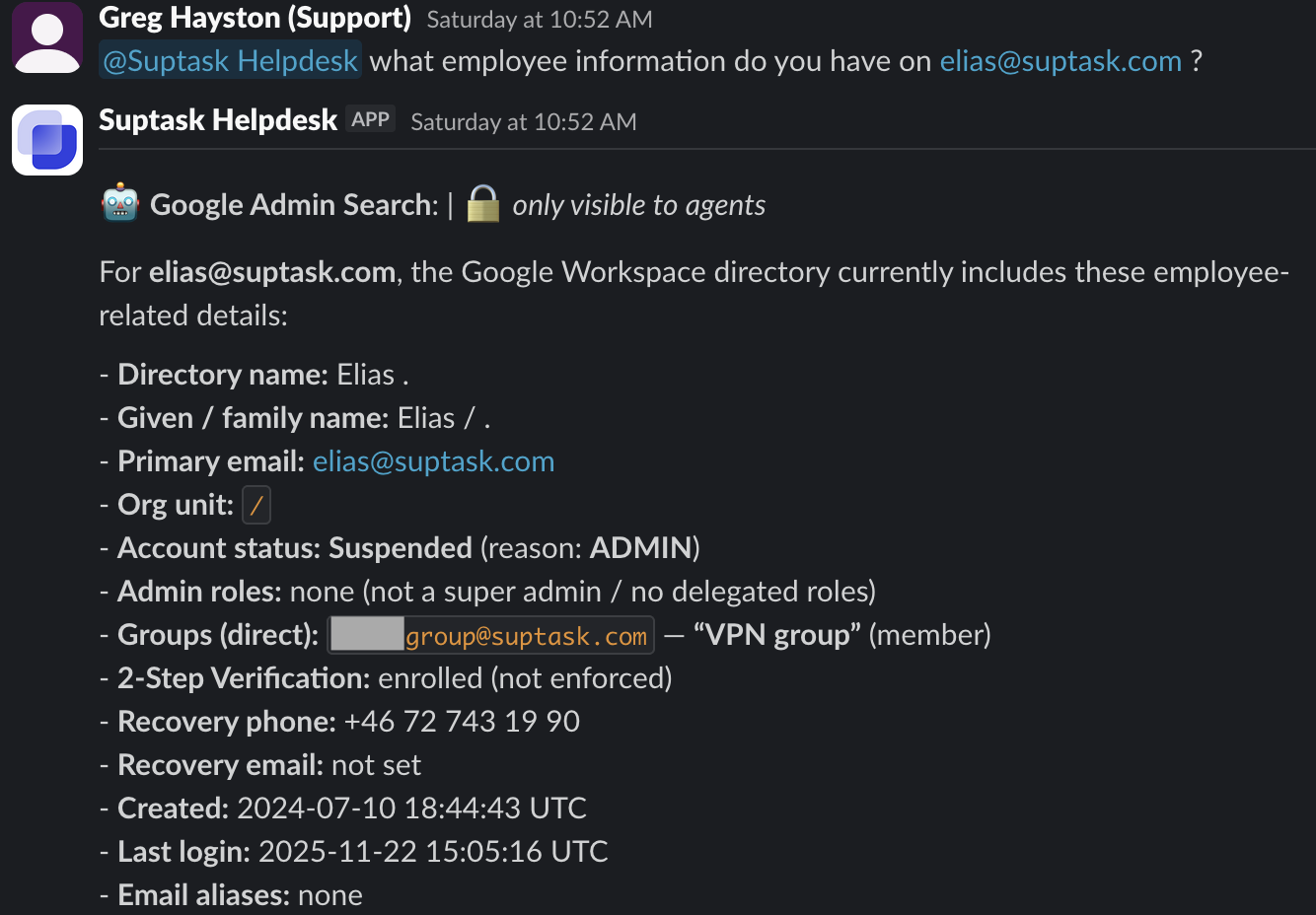
* **Manually** - mention `@Suptask` on a ticket to trigger an Assistant yourself.

<figure><img src="/files/J6wfIQOEpcA3mBzjRt6J" alt="" width="563"><figcaption><p>Agents can use AI assistants as their own co-workers</p></figcaption></figure>

***

### Examples

You choose the connectors and tools an Assistant uses, so it can be shaped to fit almost any repetitive request - reading information, taking an action, or doing several steps across different systems. A few examples:

**IT**

* Enrich a ticket with a requester's job title and group membership from Google Workspace.
* Provision access by creating a user and adding them to the right groups.

**HR**

* Onboard a new hire — create their account, add them to team groups, and update their record in your HRIS.
* Offboard a leaver by suspending their account and revoking their access.

**Business operations**

* Read product or inventory details and post them on the ticket.
* Update a record across your connected systems as part of a request.

**Customer Support**

* Answer customers automatically on tickets based on your own knowledge
* Enrich tickets with customer information from your CRM

A single Assistant can combine these - for example, reading inventory from Confluence, making a change in Google Workspace, and updating your HRIS in one workflow.

***

### Permissions and approvals

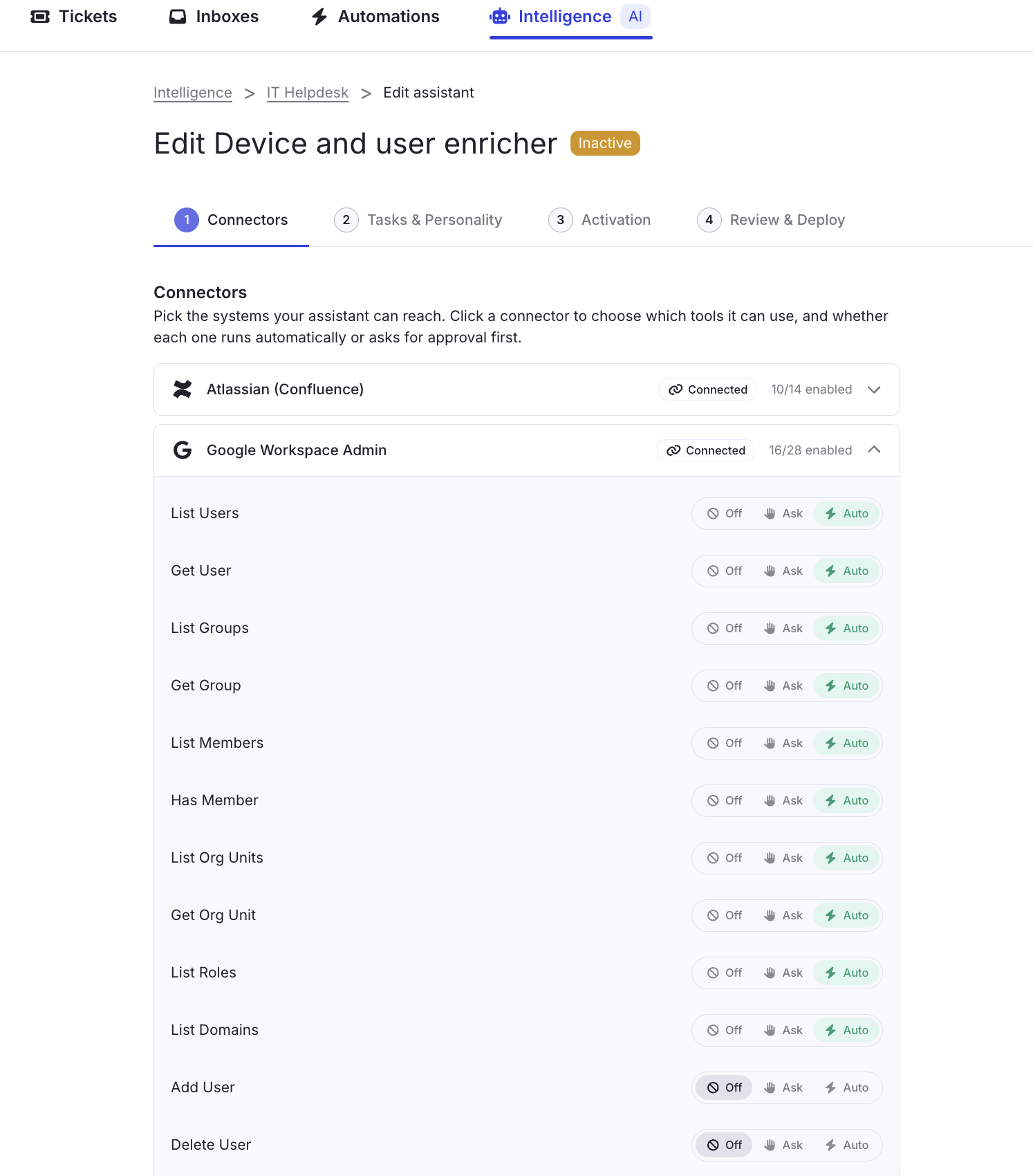
You decide exactly what each Assistant can access and do. An Assistant is given one or more **connectors**, and each connector comes with **tools** — the individual things it can look up or change. You enable only the tools an Assistant should use, so it stays within the boundaries you set.

A person also stays in the loop. An Assistant does as much as it can on its own, then pauses for an agent to review and approve before anything is changed in a connected system.&#x20;

For requests that need formal sign-off, you can combine this with [Approvals](/working-with-tickets/for-agents-who-respond-and-manage-tickets/how-to-send-and-manage-approvals.md).

{% hint style="info" %}
An Assistant never changes anything in a connected system on its own - a person always approves changes first.
{% endhint %}

***

### Set up an Assistant

Assistants are set up per Inbox in the Suptask Web app: you add an Assistant, give it the knowledge and connectors it needs, and choose what it's allowed to do. Once set up, your team puts it to work right from the ticket in Slack.