> For the complete documentation index, see [llms.txt](https://support.suptask.com/llms.txt). Markdown versions of documentation pages are available by appending `.md` to page URLs; this page is available as [Markdown](https://support.suptask.com/integrations-automations-and-workflows/integration-guides/hibob.md).
# HiBob
Connect your employee data with Suptask
{% hint style="warning" %}
This integration is a part of AI workflows in the Custom Enterprise plan. Additional cost might apply.
{% endhint %}
The HiBob connector links Suptask to your HiBob (Bob) account. Once connected, a Suptask AI Assistant can look up employee records, time off balances and company lists from HiBob - and, depending on the permissions you grant, create or update employees and submit time off requests directly from a ticket.
To connect it, you create an **API service user** in HiBob and paste its **Service User ID** and **Token** into Suptask. What the connector can reach is decided by the permissions you give that service user in HiBob.
HiBob can also work the other way around: when HiBob posts a message into a Slack channel, Suptask can turn that message into a ticket - a simple way to let an HR event in your HRIS start the work in Slack.
**Use cases:**
* Answer "how many vacation days do I have left?" without an agent looking it up.
* Enrich an HR or IT ticket with the requester's department, manager or start date.
* See who is out today or this week before assigning a ticket.
* Onboard a new hire by creating their employee record from the ticket.
* Update an employee record as part of a change request.
* Submit a time off request on behalf of a requester.
* Start an onboarding ticket automatically when HiBob announces a new hire in Slack.
***
## Before you begin
You'll need:
* An **admin** role in Suptask.
* A **Bob Admin** role in HiBob, or the rights to create service users and permission groups.
* The **Inbox** and **Assistant** you want to connect HiBob to.
What you'll do:
* [ ] Create an API service user in HiBob
* [ ] Create a permission group and assign permissions to the service user
* [ ] Paste the Service User ID and Token into Suptask
* [ ] Enable the tools your Assistant should use
{% hint style="info" %}
Keep the Connect HiBob window in Suptask open in a separate browser tab. You'll switch back to it at the end.
{% endhint %}
***
## Step 1: Create a service user in HiBob
A service user is a dedicated API account in HiBob. It isn't tied to an employee and can't log in to Bob, so the connector keeps working even if the person who set it up leaves.
1. In HiBob, open **Settings → Integrations**.
2. Open **Service Users**.
3. Click to add a new service user.
4. Enter a unique name and a display name, for example `Suptask AI`.
5. Save.
6. Copy the **Service User ID** and the **Token**.
{% hint style="warning" %}
HiBob shows the token only once. Copy it and store it securely before you leave the page - if you lose it, you'll need to create a new service user or regenerate the token.
{% endhint %}
***
## Step 2: Give the service user permissions
A new service user is created with **no access at all**. You decide what Suptask can reach by putting the service user in a permission group and assigning permissions to that group.
1. In HiBob, open **Settings → Account → Permission groups**.
2. Create a new group, for example `Suptask AI integration`.
3. Add your service user as a member of the group.
4. Assign the permissions the group needs (see the table below).
5. Save and apply the changes.
{% hint style="info" %}
Create a dedicated permission group for Suptask rather than reusing an existing one. It keeps the access easy to review, and easy to widen or narrow later without affecting anything else.
{% endhint %}
HiBob assigns permissions per **category** of fields, not per individual field. If a field the Assistant needs is missing, check which category it sits in inside HiBob and make sure that category is included in the group.
{% hint style="warning" %}
The permissions in HiBob are the outer boundary. Suptask can never read or change more than the service user is allowed to - so if a tool returns nothing, the permission group is the first place to look.
{% endhint %}
***
## Step 3: Connect HiBob in Suptask
1. In Suptask, go to **Intelligence** in the menu and select the **Inbox**.
2. Add the **HiBob** connector.
3. Paste your **Service User ID**.
4. Paste your **Token**.
5. **Save** to store the connector.
When it's done, the connector status changes to **Connected**.
***
## Available tools
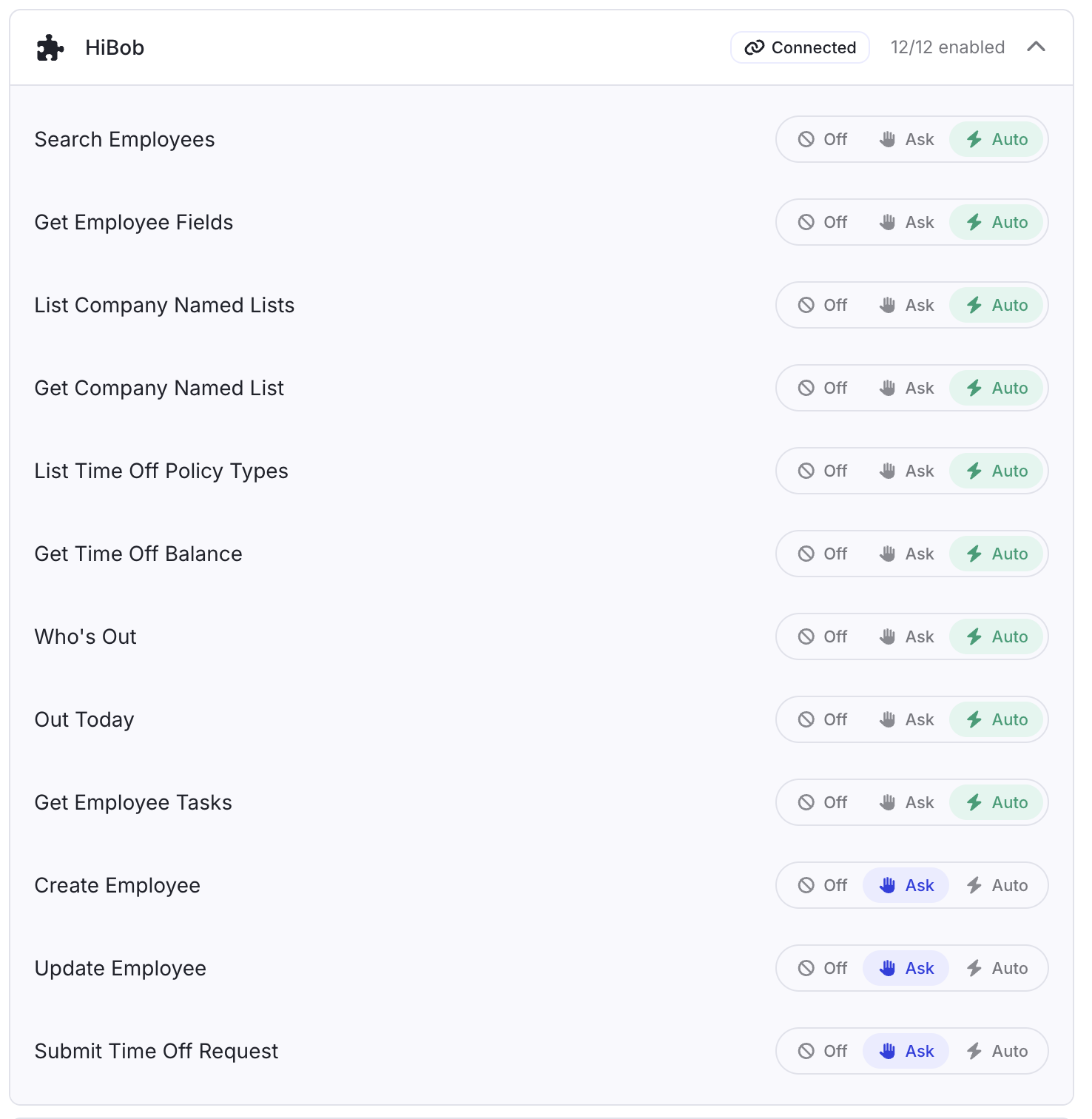
Once the connector is connected, it provides a set of **tools** to your [Suptask AI Assistants](/suptask-ai/ai-assistants.md). Each tool is one specific thing the Assistant can look up or do in HiBob.
| Tool | What it does | Needs in HiBob |
| ------------------------------ | ------------------------------------------------------------ | ------------------------------ |
| **Search Employees** | Find employees and read their details | Read access to employee data |
| **Get Employee Fields** | List the available employee fields and categories | Read access to employee data |
| **List Company Named Lists** | List the company's named lists, such as departments or sites | Read access to company lists |
| **Get Company Named List** | Read the values in a specific named list | Read access to company lists |
| **List Time Off Policy Types** | List the time off policies in use | Read access to time off |
| **Get Time Off Balance** | Read an employee's remaining balance for a policy | Read access to time off |
| **Who's Out** | See who is away over a date range | Read access to time off |
| **Out Today** | See who is away today | Read access to who's out today |
| **Get Employee Tasks** | Read an employee's onboarding or offboarding tasks | Read access to tasks |
| **Create Employee** | Create a new employee record | Write access to employee data |
| **Update Employee** | Update fields on an existing employee | Write access to employee data |
| **Submit Time Off Request** | Submit a time off request for an employee | Write access to time off |
***
## Choose how each tool runs
Each tool is set to **Off**, **Ask** or **Auto**. This is where you decide how much the Assistant handles on its own.
* **Off** - the Assistant can't use the tool at all.
* **Ask** - the Assistant pauses and asks an agent to approve before the tool runs.
* **Auto** - the Assistant runs the tool on its own when it needs it.
A good starting point:
* Set the **read** tools to **Auto** so the Assistant can answer questions and enrich tickets without slowing anyone down.
* Set the **write** tools - Create Employee, Update Employee and Submit Time Off Request - to **Ask** so an agent approves every change before it reaches HiBob.
* Set anything your team doesn't need to **Off**.
{% hint style="info" %}
Tools are set per Assistant, so two Assistants on the same Inbox can use the same connector differently. An HR Assistant might create and update employees, while a general IT Assistant only reads employee details.
{% endhint %}
***
## Example workflows
{% hint style="info" %}
Every Assistant can be customized to your needs. Below are examples of how the HiBob connector can work once connected.
{% endhint %}
**A) Answer a time off question automatically**
1. A user submits a ticket asking how much vacation they have left.
2. The Assistant looks up the requester in HiBob and reads their time off balance.
3. The answer is posted on the ticket - either directly to the requester, or only visible to agents.
**B) Enrich a ticket for the agent**
1. A ticket arrives in the IT Inbox.
2. The Assistant reads the requester's department, manager and site from HiBob.
3. The details are posted on the ticket, so the agent knows who they're helping without opening HiBob.
**C) Onboard a new hire with approval**
1. An HR ticket requests onboarding for a new employee.
2. The Assistant collects the details it needs from the ticket.
3. Because **Create Employee** is set to **Ask**, the Assistant pauses and presents the change.
4. An agent approves, and the employee record is created in HiBob.
***
## Create tickets from HiBob events
The connector lets Suptask reach into HiBob. You can also let HiBob start the work in Suptask, without using the connector at all.
Suptask reads messages posted by other Slack apps and can create a ticket from each one. So when HiBob posts into a Slack channel - a new hire starting, a role change, a leaver's last day - Suptask picks the message up and turns it into a ticket for the right team.
This is a good way to initiate onboarding from your HRIS: the HR event happens in HiBob, and the ticket appears in Slack ready for IT or HR to work on.
**How to set it up**
1. Create a **dedicated Slack channel** for the integration, for example `#hibob-events`.
2. In Suptask, open your Inbox and add the channel as a **Slack channel intake source** with the creation mode **Automatic**, and offer a Form on it.
3. In HiBob, set up the notification, workflow or automation that should post a message to the channel.
4. Suptask creates a ticket from each new message, with the message content as the ticket description.
If you can control what HiBob writes, include **field markers** in the message to pre-fill the ticket. The markers are extracted into the fields, and the rest of the message stays as the description:
```
New hire starting Monday: Anna Berg, Engineering. <> <>
```
{% hint style="info" %}
Offer one Form on the source. If you want different HiBob events routed to different Inboxes, have HiBob post to a separate channel per event type and add each channel as a source on the right Inbox.
{% endhint %}
Read more about how ticket creation from other Slack apps works:
{% content-ref url="/pages/xzp2WBZUGYEW9MpKuI5c" %}
[Integrate any app that posts in Slack](/integrations-automations-and-workflows/integration-guides/how-to-automate-and-integrate-suptask-with-other-slack-apps.md)
{% endcontent-ref %}
**Combine both directions**
The two work well together. HiBob announces a new hire in Slack, Suptask creates the onboarding ticket, and the Assistant on that Inbox uses the HiBob connector to read the employee's details and complete the remaining steps - all on the same ticket.
***
## How to use the integration
This connector is used by the AI Assistants you set up in Suptask. Read more about how Assistants work to understand all use cases.
{% content-ref url="/pages/7WEPMEAfx02Sp4yEhl36" %}
[Intelligence with Suptask AI](/suptask-ai/how-the-ai-assistant-works.md)
{% endcontent-ref %}
***
## Troubleshooting
* **Authentication failed** - the Service User ID and Token don't match, or the service user was deleted in HiBob. Re-enter both values, or create a new service user.
* **Connected, but no data returned** - the service user has no permissions yet, or its permission group doesn't cover the data you're asking for. Check the group in **Settings → Account → Permission groups**.
* **Some employee fields are missing** - those fields sit in a category the permission group doesn't include. Check the category in HiBob and add it to the group.
* **Out Today or Who's Out returns nothing** - the time off permissions, including access to who's out today, aren't granted to the group.
* **The Assistant can't create or update an employee** - the tool is set to **Off**, or the service user only has read permissions in HiBob.
* **A change waits and never happens** - the tool is set to **Ask** and no agent has approved it yet. Approve it on the ticket, or set the tool to **Auto** if it should run on its own.
* **The connector stopped working** - the token may have been regenerated or the service user removed in HiBob. Create a new service user and update the connector.
* **No ticket is created from HiBob's Slack messages** - the channel isn't part of an intake source with the creation mode **Automatic**, the Suptask App isn't in the channel, or no Form is offered on the source.
***
## Need help?
Reach out to [Suptask Support](/getting-started/contact-support.md) and our team will help you connect HiBob.