> For the complete documentation index, see [llms.txt](https://support.suptask.com/llms.txt). Markdown versions of documentation pages are available by appending `.md` to page URLs; this page is available as [Markdown](https://support.suptask.com/integrations-automations-and-workflows/integration-guides/guru.md).
# Guru
Answer tickets with knowledge documents from GetGuru
{% hint style="info" %}
Guru is a knowledge base connector for Suptask AI. It is configured per Assistant, alongside the Assistant's other connectors and tools.
{% endhint %}
The Guru connector lets a Suptask AI Assistant search your team's Guru Cards and use that knowledge to answer and deflect tickets directly in Slack. Answers stay grounded in your verified, single-source-of-truth content, so users get consistent replies without waiting for an agent.
**Use cases:**
* Answer common questions automatically using content from Guru.
* Deflect repetitive tickets before they reach an agent.
* Give agents relevant Guru Cards as context inside a ticket.
* Keep replies aligned with your verified knowledge base.
***
### Requirements
To set up the connector you need:
* **Admin access** in Guru, or the **Manage Apps & Integrations** permission. This is required to generate an API token.
* `[EMAIL]` - your Guru account email address.
* `[TOKEN]` - an API token from your Guru Admin settings.
***
### Step 1: Generate a Guru API token
Guru's API uses Basic Authentication with your email and a **User Token**. The token inherits the permissions of the Guru user who creates it, so it can only search the Collections that user can access.
1. Log in to Guru.
2. Open the **Manage** menu and go to **Apps & Integrations**.
3. Select the **API Access** tab.
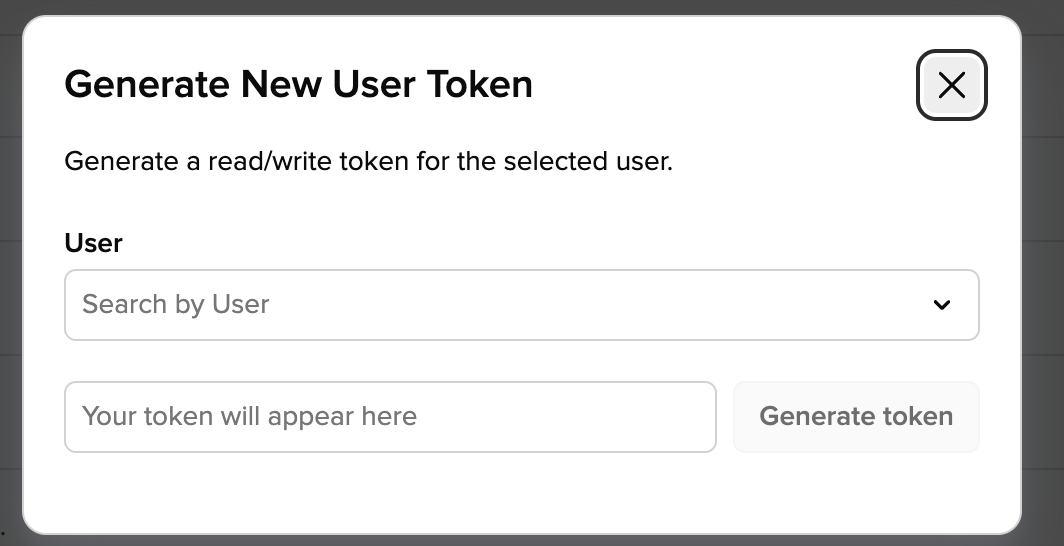
4. Click **Generate User Token** and enter your name.
5. Click **Generate token**, then **Copy** the token.
{% hint style="warning" %}
Guru only shows the token once. Copy it and store it securely before leaving the page - if you lose it, you will need to generate a new one.
{% endhint %}
***
### Step 2: Add the Guru connector in Suptask
Add Guru to the Assistant that should use it. The Assistant will use these credentials to search Guru when handling tickets.
1. In Suptask, navigate to **Intelligence** in the menu and select the Inbox
2. Add the **Guru** connector.
3. In the authentication field, enter `[EMAIL]:[TOKEN]`
1. `[TOKEN]` the User Token from Step 1
2. `[EMAIL]` your Guru account email
4. **Save** to store the connector.
5. Open the **Assistant** you want to connect Guru to.
6. Enable the Guru permissions for the Assistant so it can look up Cards.
{% hint style="info" %}
The connector can only reach the Collections available to the Guru user behind the token. To broaden or limit what the Assistant can search, adjust that user's access in Guru.
{% endhint %}
***
### Example of how it can work
{% hint style="info" %}
Every Assistant can be customized to your needs. Below are two examples of how the Guru connector can work once connected.
{% endhint %}
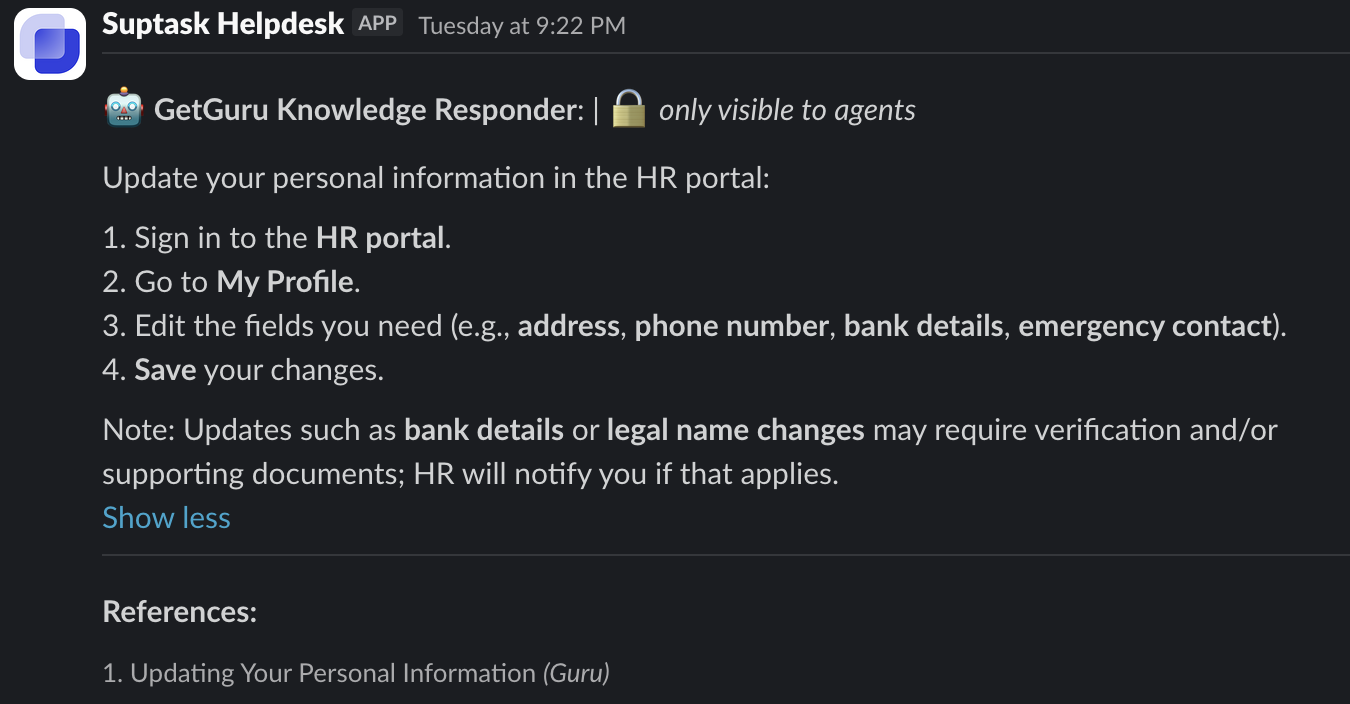
**A) Automatic answering and deflection**
1. A **user submits a ticket** in Suptask.
2. The Assistant **searches Guru** for relevant Cards based on the request.
3. A suggested answer is **posted automatically** in the ticket.
1. Either directly to the requester, or onl visible to the Agents.
4. The user can close the ticket if the answer resolves their issue, or keep it open for an agent.
**B) Agent co-worker**
1. A ticket is **opened and handled by an agent**.
2. The agent mentions **`@Suptask`** in the ticket.
3. The Assistant returns the most relevant Guru Cards as context, so the agent can reply faster without leaving Slack.
***
### Troubleshooting
* **Authentication failed (401):** The email and token do not match, or the token was revoked in Guru. Confirm `[EMAIL]` matches the user who generated the token, then re-enter or regenerate `[TOKEN]`.
* **No results returned:** The token's Guru user may not have access to the relevant Collection. Check that user's permissions in Guru.
* **Token stopped working:** Tokens do not expire, but they stop working if deleted or regenerated in Guru. Generate a new token and update it in Suptask.