> For the complete documentation index, see [llms.txt](https://support.suptask.com/llms.txt). Markdown versions of documentation pages are available by appending `.md` to page URLs; this page is available as [Markdown](https://support.suptask.com/integrations-automations-and-workflows/integration-guides/google-workspace-admin.md).
# Google Workspace Admin
Manage and fetch information from Google Workspace Admin
## Set up the Google Workspace Admin connector
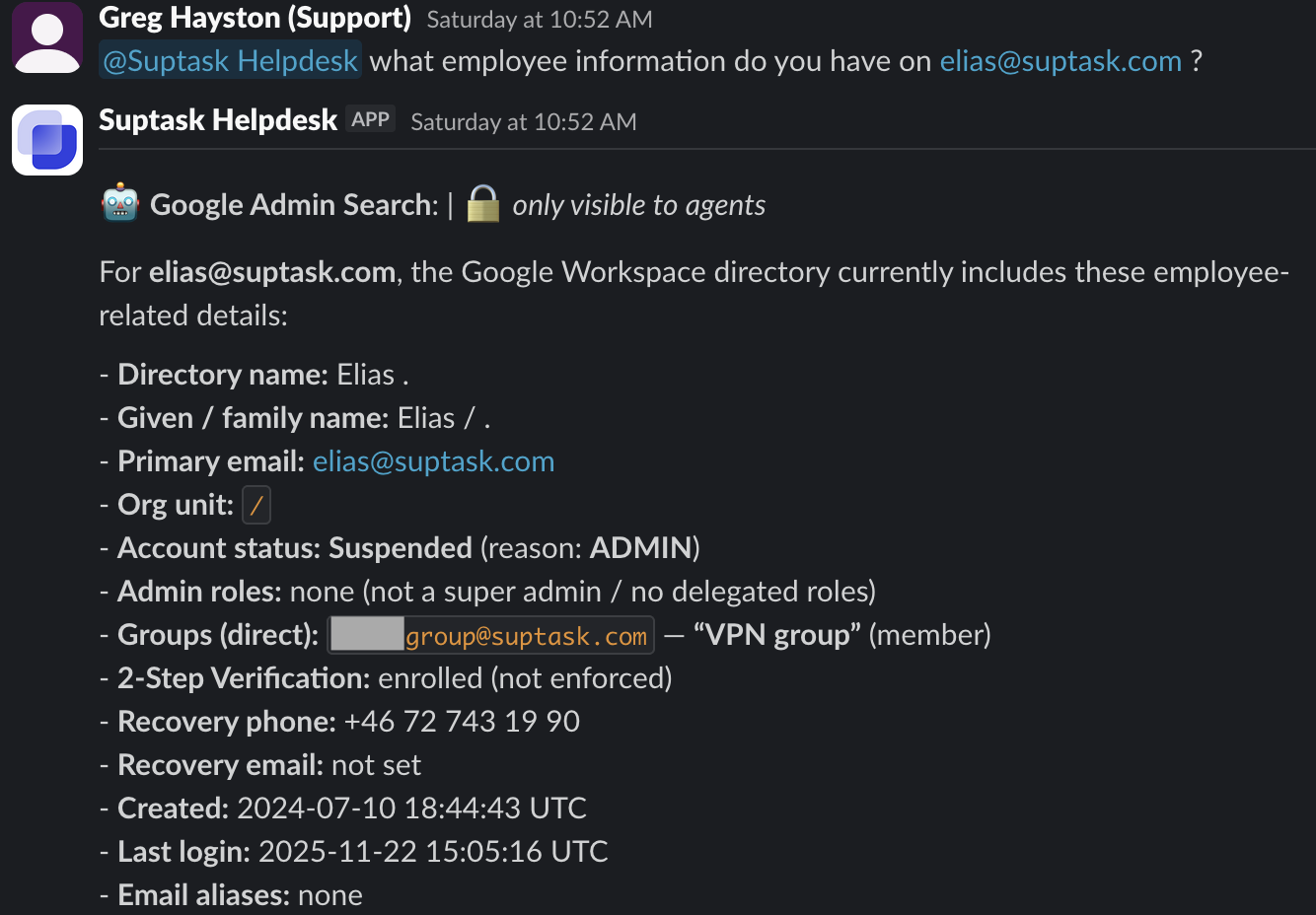
The Google Workspace Admin connector links Suptask to your Google Workspace directory. Once connected, agents can view user details and - depending on the permissions you grant — manage accounts directly from a ticket, such as suspending or unsuspending a user.
To connect it, you create an OAuth 2.0 client in the **Google Cloud Console**, then paste the resulting **Client ID** and **Client Secret** into Suptask. This guide covers every step.
{% hint style="info" %}
You set up this connector in the Suptask Web App as an admin. Your agents then use it from Slack while working on tickets.
{% endhint %}
***
### Common workflows
A few common workflows for Google Workspace Admin:
* **Access requests** - grant a user access to a shared drive, group, or other resource after confirming their details.
* **Onboarding** - create a new team member's account and add them to the right groups and resources.
* **Offboarding** - suspend a leaver's account and revoke their access.
***
#### Before you begin
You'll need:
* An **admin** role in Suptask.
* Access to the **Google Cloud Console** with rights to create OAuth credentials in a project.
* A **Google Workspace** account with the admin privileges needed for the data you want to access.
What you'll do:
* [ ] Select or create a Google Cloud project
* [ ] Enable the Admin SDK API
* [ ] Configure the OAuth consent screen (first time only)
* [ ] Create an OAuth 2.0 client (Web application)
* [ ] Copy the Client ID and Client Secret into Suptask
* [ ] Choose permissions and authorize
{% hint style="info" %}
Keep the Connect Google Workspace Admin window in Suptask open in a separate browser tab. You'll switch back to it at the end.
{% endhint %}
***
#### Step 1 - Open Google Cloud and select your project
1. Go to the [Google Cloud Console](https://console.cloud.google.com/).
2. In the top bar, select the project you want to use, or create a new one.
* The screenshots in this guide use a project named **Suptask**.
***
#### Step 2 - Enable the Admin SDK API
The connector reads your directory through Google's **Admin SDK**. Enable it before creating credentials.
1. In the Cloud Console, open **APIs & Services → Library**.
2. Search for **Admin SDK API**.
3. Open it and click **Enable**.
{% hint style="warning" %}
If the Admin SDK API isn't enabled, authorization will fail or return no directory data.
{% endhint %}
***
#### Step 3 - Configure the OAuth consent screen (first time only)
If this is the first OAuth client in the project, configure the consent screen under **Google Auth Platform**.
1. Open **Google Auth Platform** (APIs & Services → OAuth consent screen).
2. Under **Branding**, set the app name and a support email.
3. Under **Audience**, choose **Internal** so only users in your Google Workspace organization can use it.
4. Save.
{% hint style="info" %}
Skip this step if your project already has a configured consent screen.
{% endhint %}
***
#### Step 4 - Create the OAuth client
1. In **Google Auth Platform**, open **Clients** and click **+ Create client**.
2. Set **Application type** to **Web application**.
3. For **Name**, enter something recognizable, for example `Suptask AI`. This name is only shown inside the console.
4. Under **Authorized JavaScript origins**, add:
```
https://ai-prod.suptask.com
```
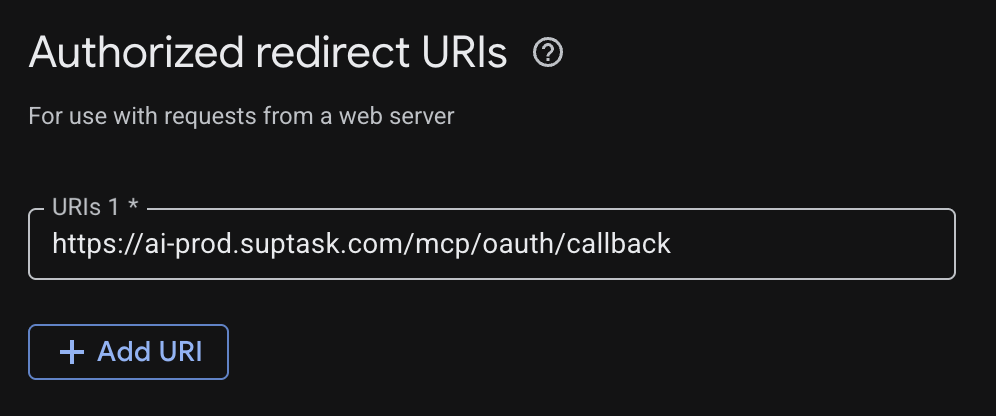
5. Under **Authorized redirect URIs**, add:
```
https://ai-prod.suptask.com/mcp/oauth/callback
```
6. Click **Create**.
{% hint style="warning" %}
Enter both URLs exactly as shown, with no trailing slash. A mismatch is the most common cause of authorization errors.
{% endhint %}
***
#### Step 5 - Copy your Client ID and Client Secret
After you create the client, Google shows your **OAuth Client ID** and **Client Secret**.
1. Copy the **Client ID** (it ends with `.apps.googleusercontent.com`).
2. Copy the **Client Secret**.
{% hint style="info" %}
Treat the Client Secret like a password. You can find both values again later by reopening the client under Clients.
{% endhint %}
***
#### Step 6 - Connect in Suptask
Switch back to the **Connect Google Workspace Admin** window in Suptask.
1. Paste your Client ID into **OAuth Client ID**.
2. Paste your Client Secret into **OAuth Client Secret**.
3. Select the **Permissions** you want to grant (see the next section).
4. Click **Authorize**.
5. A Google sign-in window opens. Sign in with a **Google Workspace admin account** and approve access.
When it's done, the status changes from **Not connected** to connected.
***
#### Choosing permissions
Each permission maps to what Suptask can do in your directory. Grant only what your team needs.
* **Users (read-only)** — View user accounts and details.
* **Users (read/write)** — Manage user accounts: create, update, suspend, delete.
* **Groups (read-only)** — View groups and memberships.
* **Groups (read/write)** — Manage groups and memberships.
* **Org Units (read-only / read/write)** — View or manage organizational units.
* **Roles (read-only / read/write)** — View or manage admin roles and assignments.
* **Domains (read-only)** — View verified domains.
{% hint style="info" %}
Start with read-only access. You can reopen the connector and grant read/write later if needed.
{% endhint %}
***
#### Troubleshooting
* **`redirect_uri_mismatch`** — The redirect URI in Google doesn't match. Confirm it's exactly `https://ai-prod.suptask.com/oauth/callback`.
* **Access blocked / app not verified** — Your consent screen **Audience** is likely set to External. Change it to **Internal** (Step 3).
* **No data after connecting** — The Admin SDK API isn't enabled (Step 2), or the signed-in Google account lacks admin privileges.
* **Authorize button stays disabled** — Make sure both the Client ID and Client Secret fields are filled and at least one permission is selected.
***
#### Need help?
Reach out to [Suptask Support](https://support.suptask.com/getting-started/contact-support) and our team will help you connect Google Workspace Admin.
.png?alt=media)
.png?alt=media)